ManualTK De-Esser plugin →
TK De-Esser
A de-esser with a relative detector - it compares the sibilance band against the broadband level, so it fires on an "sss" rather than on a loud vowel, which is what keeps it from dulling everything the singer does loudly. The band is *replaced* rather than notched out, so the untouched part of the spectrum is literally the input and there is no phase-smeared crossover to hear. A reverse mode puts sibilance back into a take that has lost its articulation.
The interface - every control mapped
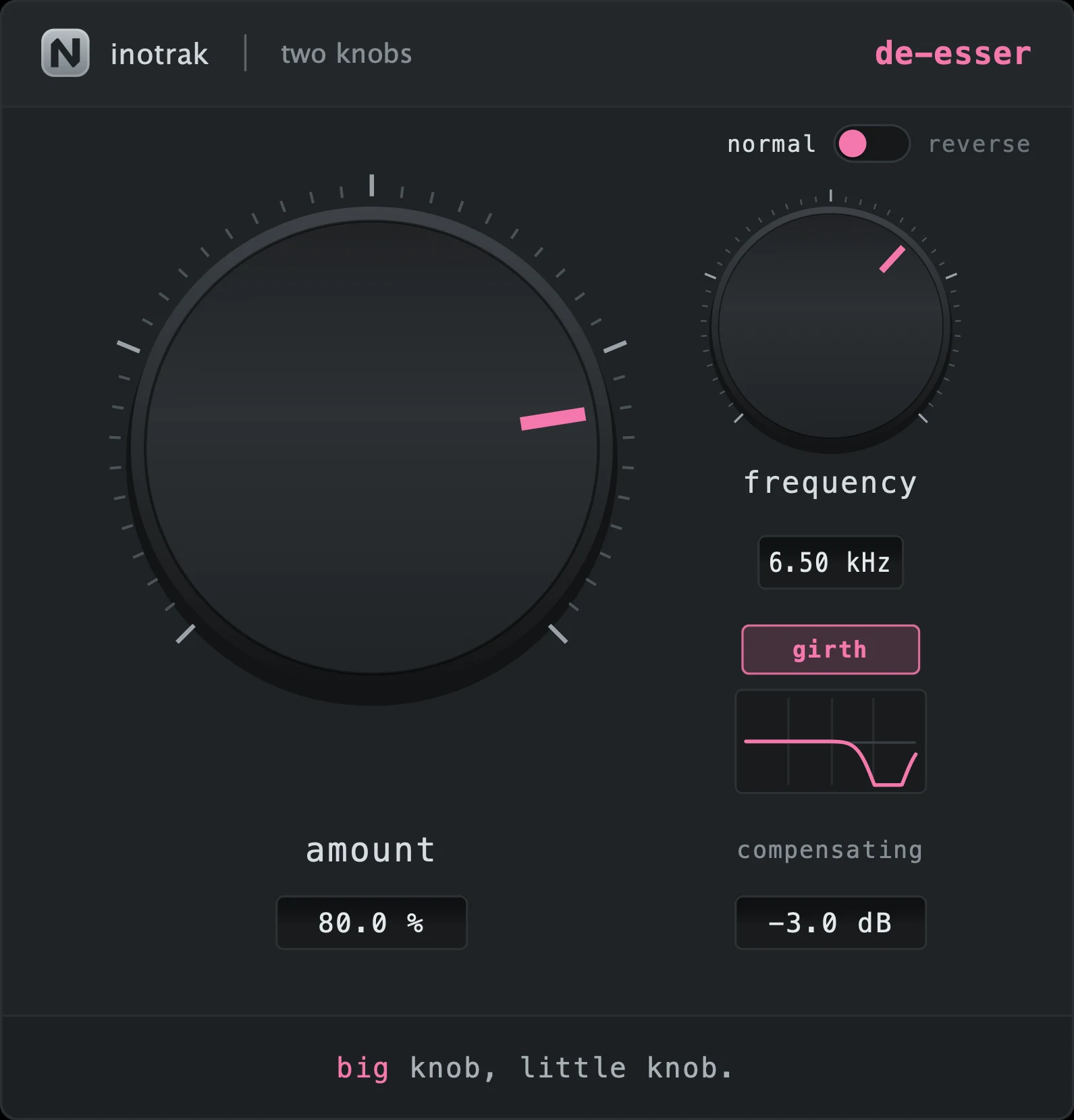 1234567
Quick start
- Sweep frequency onto the ess - 2 kHz to 12 kHz, continuous.
- Turn amount up until the sibilance sits down without the vocal going dull.
- On a bus, or where the sibilance is smeared across a region rather than one spot, turn girth on.
- For a soft or over-de-essed take, flip to reverse and put the articulation back instead.
The two knobs
Depth of reduction. The detector is relative - it compares the sibilance band against the broadband level, so it triggers on an "sss" rather than on a loud vowel. That is what stops it dulling everything the singer does loudly.
Where the band works, 2 kHz to 12 kHz, continuous.
The toggle and the button
reverse is the one people do not expect: it puts sibilance *back* when a vocal has gone soft - a whispered or heavily-compressed take that has lost its articulation. Because the detector is relative, it fires on a weak ess just as readily as a loud one, so there is something to lift. A little saturation is folded into the restored band, because an ess that is only louder still sounds dull - it needs its harmonics back too.
Opens the band from a narrow spot (Q 3.5) to about an octave (Q 1). The narrow setting is right when one singer has one specific ess; turn girth on when the sibilance is smeared across a region, or on a bus where several voices sibilate at different frequencies and no single spot catches them all.
How the band is treated
The band is replaced rather than notched out - the untouched part of the spectrum is literally the input signal, so there is no phase-smeared crossover to hear.
What to reach for it on
Normal for any bright vocal; reverse for a close-mic’d whisper, a soft rap take, or a vocal that got over-de-essed somewhere upstream; girth on a backing-vocal bus.
Shared across the series
The same on all six, so learning one teaches you the set.
Input is level-matched to output continuously, so turning the big knob up never simply makes things louder - you hear the effect, not the volume. The compensating readout under the little knob shows what it is doing right now: negative means the plugin made things louder and the compensation is pulling back. It takes about a second to settle after a big move, deliberately - a compensator that reacts instantly is a compressor. TK Compressor is the one exception: its level rises with squeeze (see its own section).
Drag up and down to adjust. Hold shift while dragging for fine adjustment. Double-click a knob to return it to its default. You can also double-click a value readout and type a number.
A small live curve under the little knob showing what the plugin is currently doing to the signal - the transfer curve, the filter shape or the gate contour, depending on the plugin. It follows both knobs and the toggle.
Drag any edge. The aspect ratio is locked, the range is 60 %-200 %, and the size is remembered with the session. Everything stays readable at the bottom of that range.
No preset browser, no meter, no gain-reduction display, no A/B, no settings gear. Nothing to configure and nothing shared with any other plugin - these hold no cross-plugin state and behave identically with none of the rest of the suite installed.